Skip to Content
My Website
  • Home
  • Services
  • About Us
  • Helpdesk
  • Jobs
  • Contact us
  • +251 9 83 58 58 58
  • Sign in
  • Contact Us
My Website
      • Home
      • Services
      • About Us
      • Helpdesk
      • Jobs
      • Contact us
    • +251 9 83 58 58 58
    • Sign in
    • Contact Us
    Home Page
    System Users Managment
    Applications
    Accounting_main
    Customers_accounting
    Payments
    Customers_accustomer
    Receipts
    Invoices
    Products_ acc
    Credit Note
    Accounting_acc
    Journal Entries
    Journal_acc
    Reconciliation
    Expenses
    Budgets
    Tax Reports
    Dashboard
    Statistics
    Reports_sales_dashboard
    Overview
    Vendors
    Bills
    Products_acc_vndr
    Debit Note
    Receipts_acc_ven
    Payments_Acc_vendor
    Vendors List
    Configuration_acc
    Chart of Accounts
    Taxes
    Fiscal Position
    Journals
    Payment Terms
    Reporting
    Payments_acc_repo
    Balance Sheet
    Trial Balance
    General Ledger
    Invoices acc report
    Profit and Loss
    Purchase
    Product_pur
    Product_pro_purcha
    Product Variant_purch
    Reports_purch
    Purchase Analysis
    Vendor Bills Analysis
    Order_pur
    Purchase Orders
    Purchase Agreement
    Vendors_pur
    Requests for Quotation
    Invoices_pur
    payments_pur
    Vendor Bills
    Configuration_purcha
    Journals_purch
    Taxes_purch
    Setting_pur
    General Settings
    Users_Gs
    Access Groups
    Two-Factor Authentication
    Access Rights
    Companies
    Multi-Company
    Inventory
    Dashboard_inv
    Reports_inv_dashboard
    Statistics
    Overview_inv_dash
    Operation_inv
    Scrap
    Internal Transfers
    Outgoing Shipments
    All Transfers
    Incoming Shipments
    Adjustments_inv
    Inventory Valuation
    Inventory Adjustments
    Products_inv
    Package_inv
    Products inv pro
    Lot/Serial Number
    Product Variant_inv
    Overview_inv
    Marketing
    Dashboard_mark
    Statistics_mark
    Overview_mark
    Reports_mark
    Configuration_mark
    Email Templates
    Settings_mark
    Campaign Types
    Marketing Tags
    Events & Social
    Events
    Social Media_mark
    Website Builder
    Surveys_mark
    Marketing
    Campaigns & Emails
    Email Marketing
    Mass Mailing
    Campaigns
    Project Management
    Projects & Tasks
    Projects
    Tasks_proj
    Timesheets
    Dashboard_proj
    Overview_proj
    Reports_proj
    Statistics_proj
    Project Management_menu
    Planning & Reporting
    Milestones
    Resources_pro
    Report_plan
    Gantt Charts
    Configuration_proj
    Project Stages
    Timesheet Settings
    Task Types
    Settings_proj
    Human Resources
    Dashboard_HR
    Statistics_HR
    Overview_HR
    Reports_HR
    Employees & Contracts
    Departments_HR
    Employees_hr
    Contracts_HR
    HR Operations
    Payrolls_HR
    Expenses_HR
    Leave Management_HR
    Attendance_HR
    Recruitment_HR
    Timesheets_HR
    Performance Reviews_HR
    Payroll
    Salary Structures
    Configuration_HR
    Contract Types
    Payroll Structures
    Employee Categories
    Leave Types
    Settings_HR
    Manufacturing
    Configuration_manu
    Bill of Materials Types
    Settings_manu
    Routing
    Work Center Categories
    Production
    Work Order
    Planning
    Production Orders
    Dashboard_Manu
    Reports_manu
    Overview
    Statistics_manu
    Resources & Quality
    Quality Control
    Maintenance
    Work Centers
    Bill of Materials
    Point of Sale
    Configuration_pos
    POS Settings
    POS Categories
    Payment Methods_pos
    POS Overview
    Products & Inventory_pos
    Pricelists_pos
    Product Categories
    Products_pos
    Reports_pos
    Sales Reports_pos
    Cash Control_pos
    Orders & customers
    Quotations_pos
    Orders_pos
    Customers_Pos
    Dashboard_POS
    Statistics_pos
    Reports_pos
    Overview_pos
    Sales
    Dashboard
    Statistics
    Overview
    Reports
    To Invoice
    Orders To Upsell
    Orders To Invoice
    Products_sales
    Product Pricelist
    Product Variants_sales
    Giftcard and eWallet
    Products_sale pro
    Discount and Loyalty
    Configuration
    Payment Terms
    Delivery Methods
    Pricelist Rules
    Setting
    Reports_sales
    Customers_sales report
    Sales
    Sales Person
    Products_report
    Sales
    Orders
    Sales Team
    Customers_sales order
    Sales Orders
    Quotations
    Contacts
    Front Desk
    Reporting_front
    Machine History
    Training Schedule
    Customer Letters
    Visit/Pickup Reasons
    Machine Transfer
    Items On hand
    Visitor Management
    Visitor
    Agreements
    Requests To MOR
    MRC Pool
    MRC Requests
    System Overview
    Purpose of the Manual
    Modular Structure
    Login and System Navigation
    System Overviews
    Target Audience
    Inventory Managers
    Accounting and Finance Staff
    Cashiers
    System Administrators

    Cket Technologies Documentation

    Setting_pur

    Purchase Setting - allow a company to control how purchasing activities are managed. These settings help businesses improve approval processes, reduce mistakes, receive goods on time and manage supplier agreements more effectively 
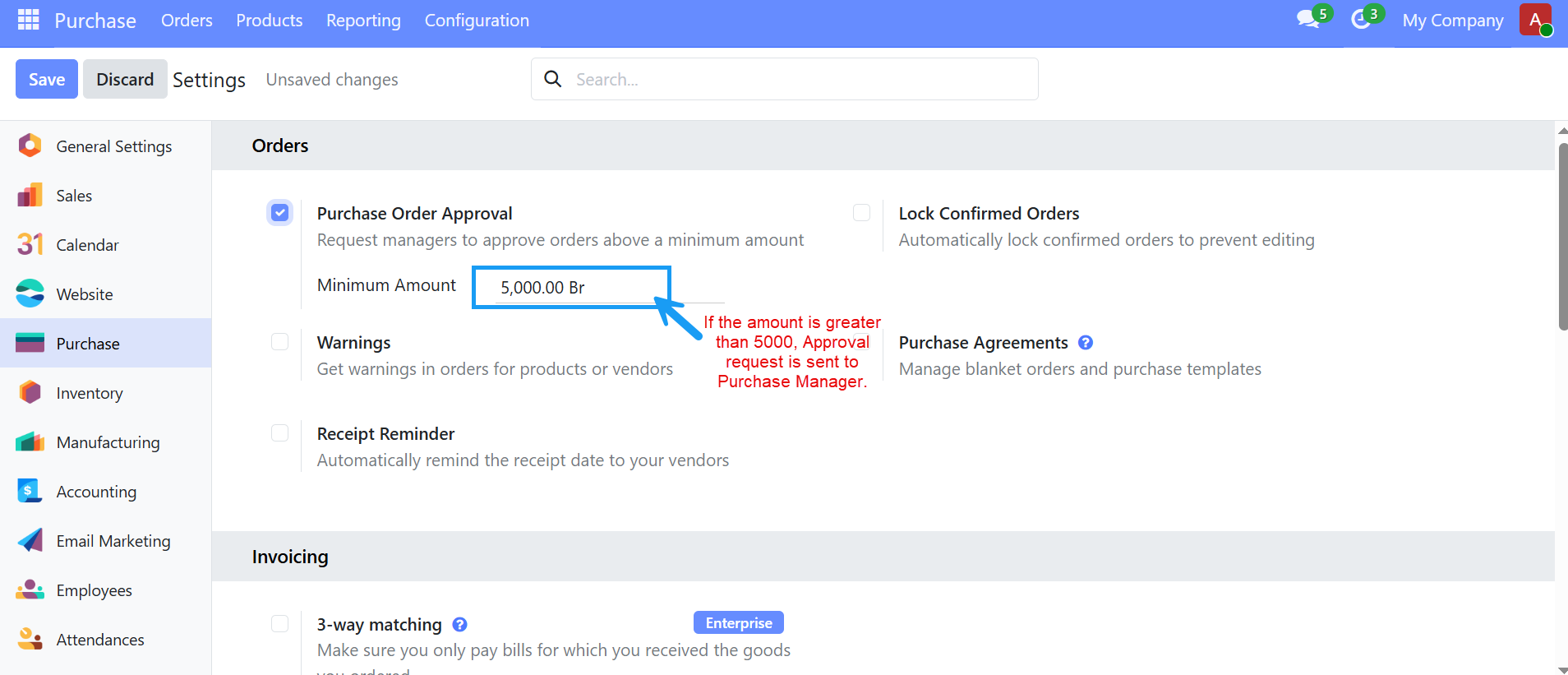
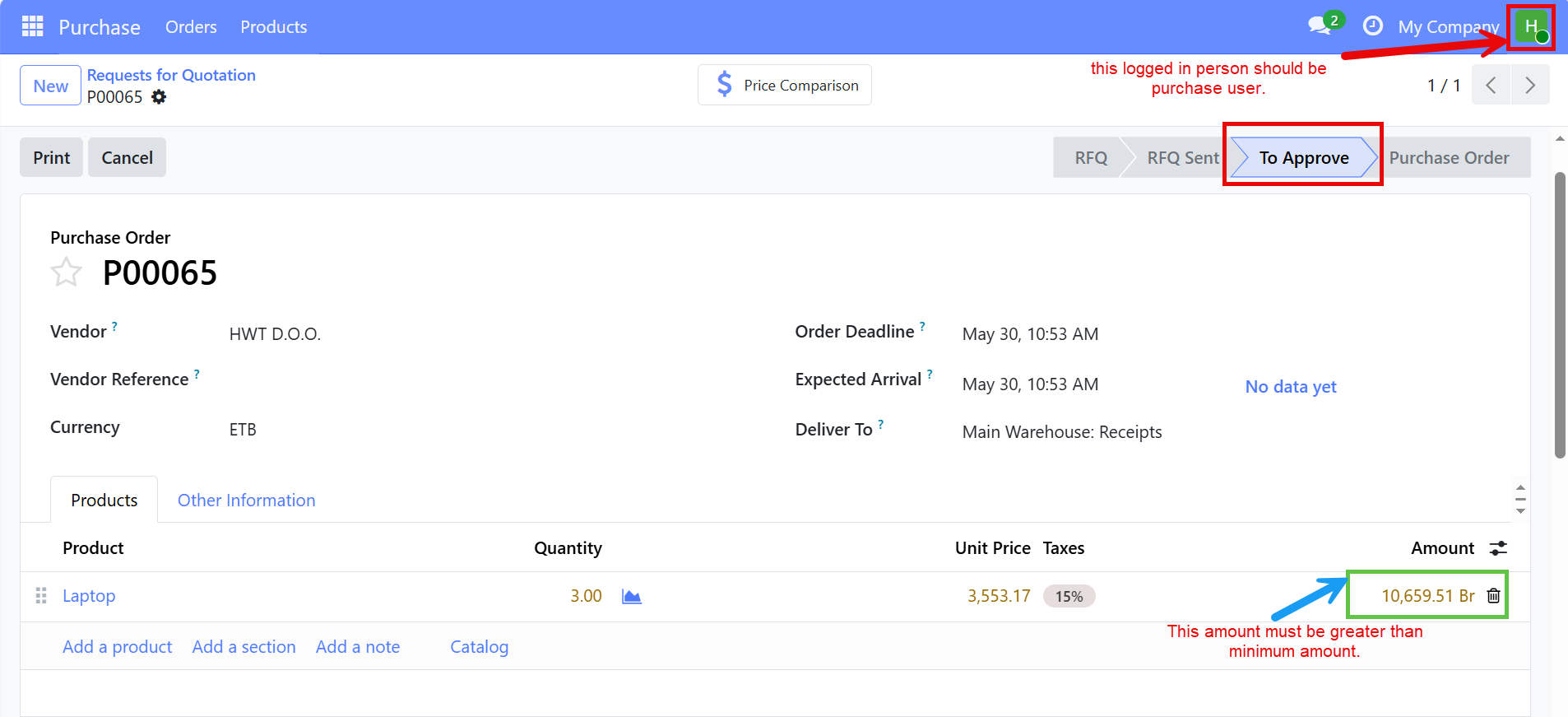
    1. Purchase Order Approval - is a control mechanism that requires approval before a purchase order (PO) can be confirmed. Companies often want managers to review expensive purchases before orders are sent to suppliers. This helps prevent unauthorized or Unnecessary spending.
    To Active this Feature   Go to Purchase app --> Configuration --> Setting.


    After you set a Minimum Amount and then go to purchase order and create a RFQ (Purchase User) Above the minimum amount then when user click "confirm order" button it directly sends Approval request to the Manager.

    When this feature is enabled, a minimum approval amount is defined in the Purchase Settings. Purchase Orders below this amount can be confirmed directly by Purchase Users. However, if the total amount of a Purchase Order exceeds the defined minimum value, the Purchase User cannot confirm it immediately.

    Instead, the system sends an approval request to a Purchase Manager. The Purchase Manager can then log in, review the Purchase Order details, and decide whether to approve or reject the request. Once the Purchase Manager approves the Purchase Order, it can proceed with the normal purchasing process.

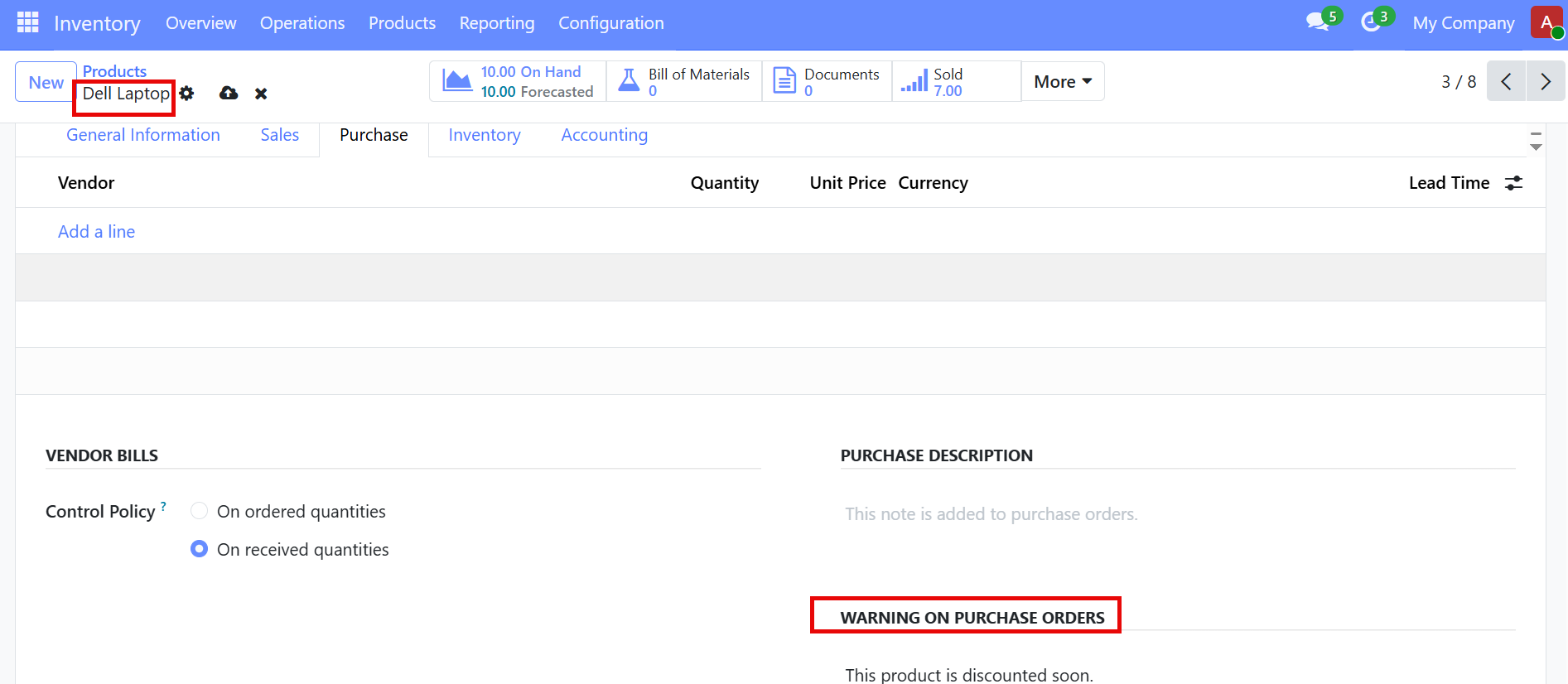
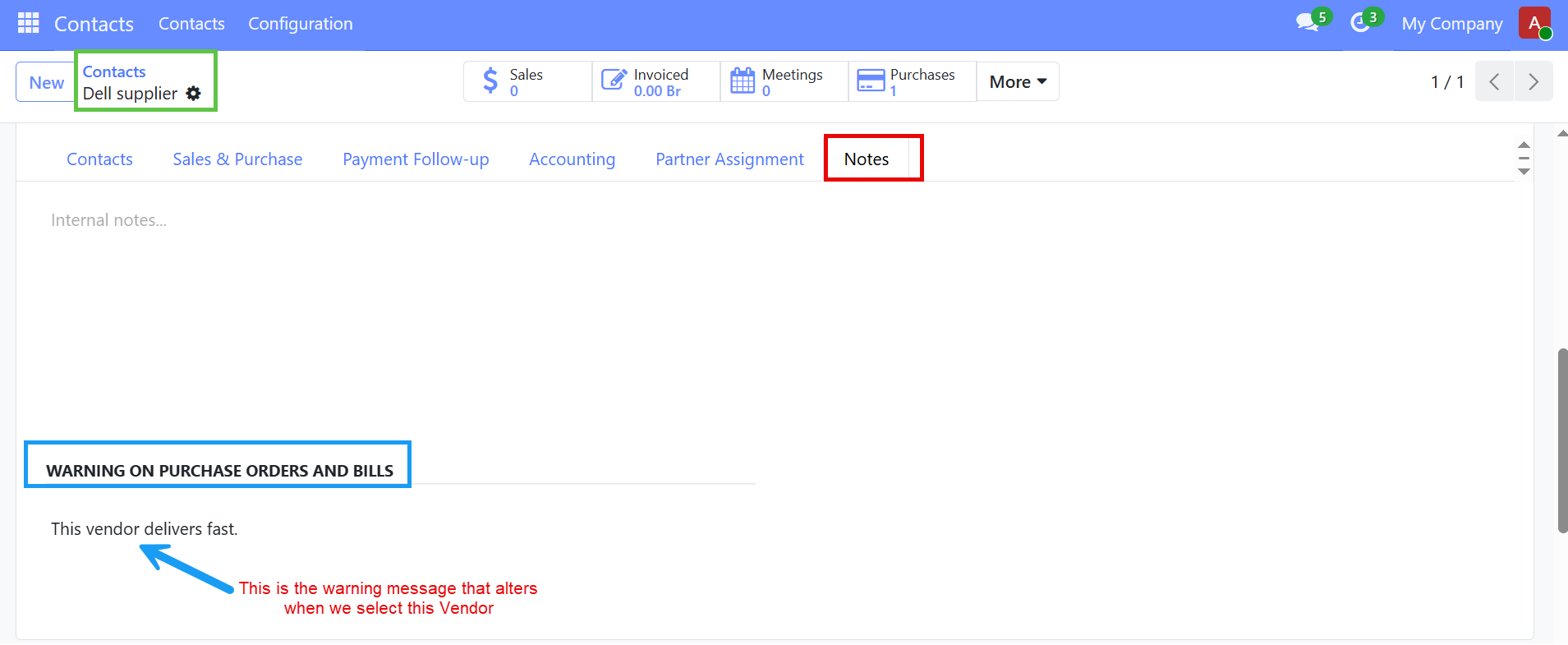
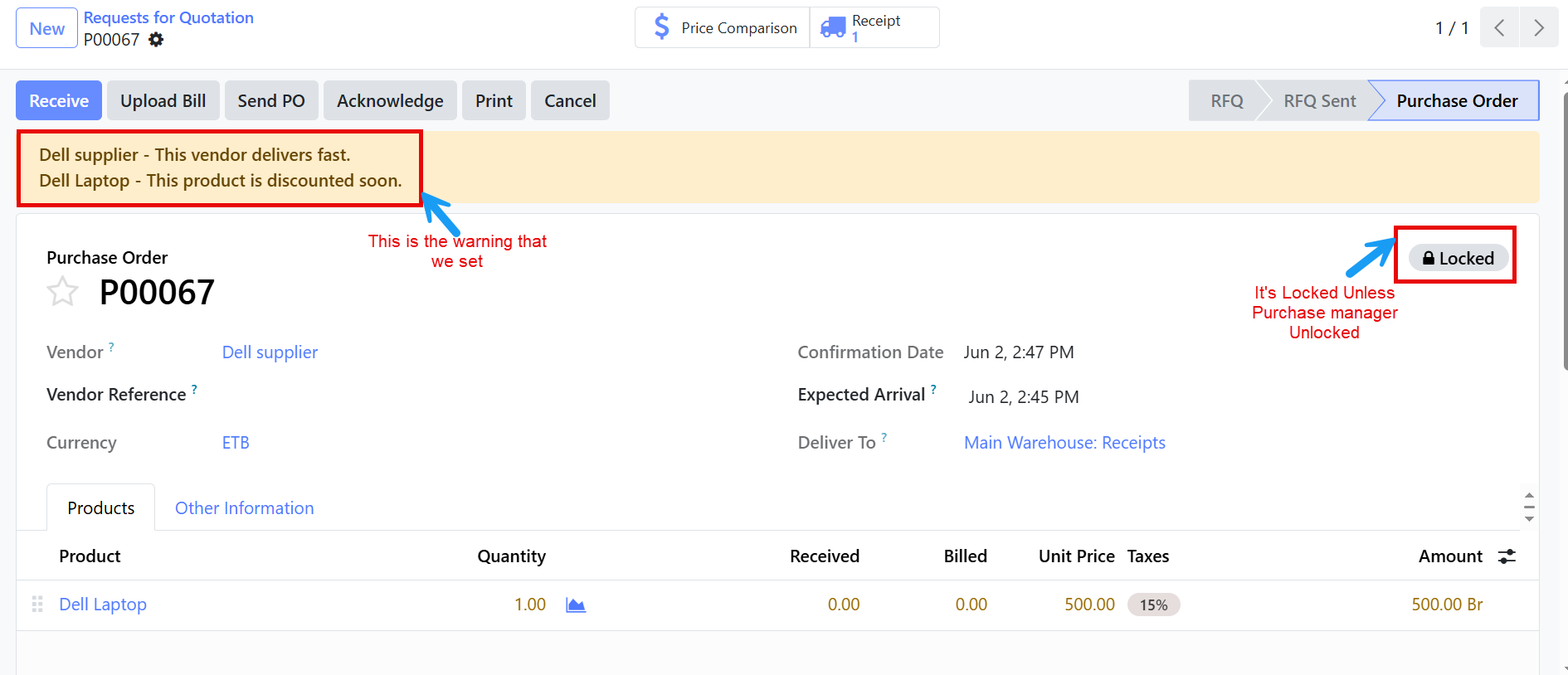
    2. Warnings - The warning feature helps inform about important information related to specific vendors or products during the purchasing process.

    • Enables a feature that lets the system show alert messages during purchasing, we will start seeing extra fields on vendor and product. The warning is part of your company's internal control system it is intended to guide employees who create purchase order.
    • This helps ensure that important information is noticed before the purchasing process  is made.
    1. For vendor => go to contact and open one vendor and then on Note tab.
           
    1. 2. For Product => go product and open one product and then on purchase tab.
    2.   
    3.   


    3. Lock Confirmed Orders - Lock Confirmed Orders prevents users from modifying a Purchase Order after it has been confirmed. Once an order is sent to a supplier, changing quantities or prices may create confusion and errors.

    • Confirmed Purchase Orders are automatically locked.
    • Users cannot edit important information unless the order is unlocked by an authorized user( Manager).
       

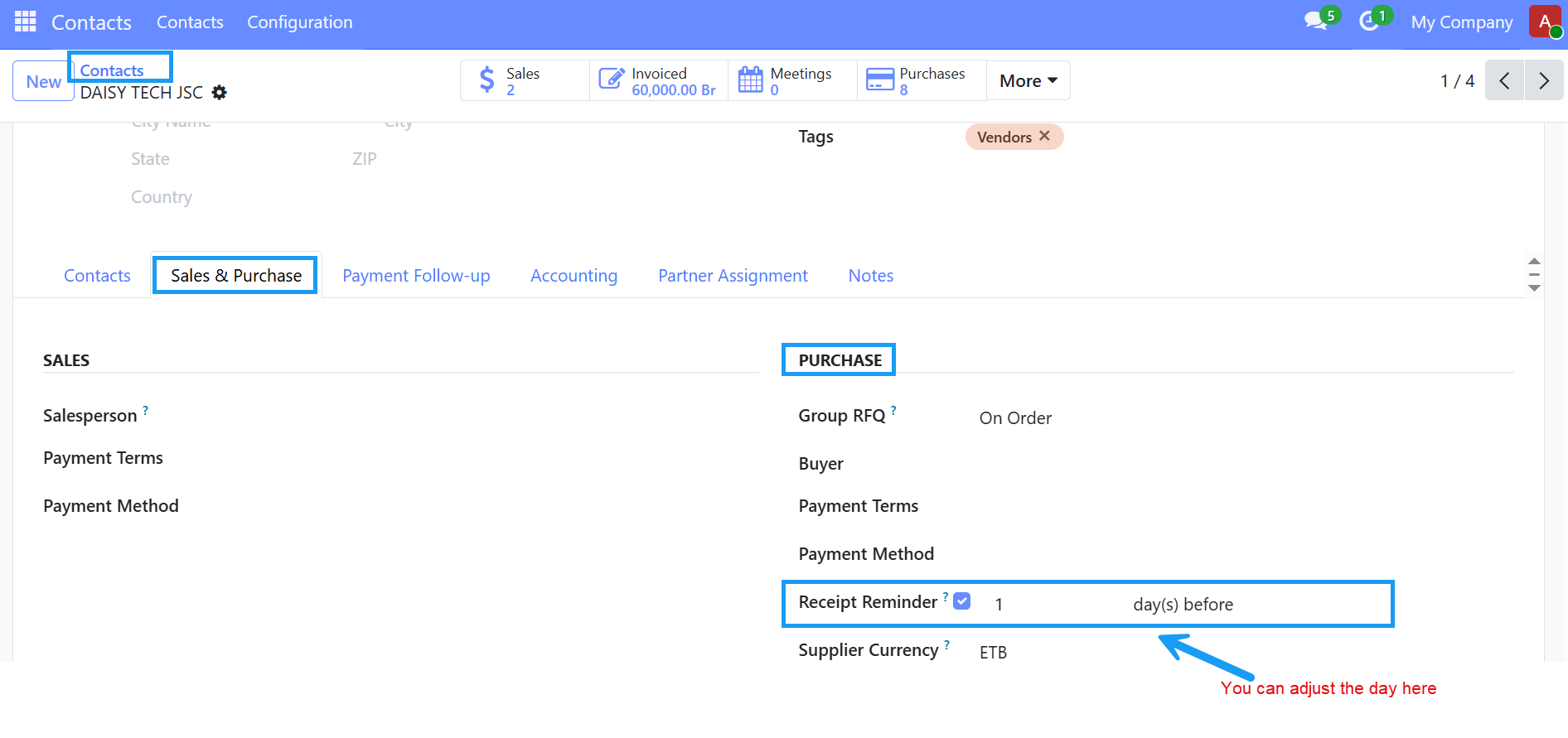
    4. Receipt Reminder - Automatically remind the receipt date to your vendors. it is done through Email. Remind the supplier that delivery date is approaching so they do not forget or delay the shipment.

    After Activate the check box on purchase setting,

    • Go to contact --> open a vendor --> go to sales & purchase tab --> then under PURCHASE you will find Receipt Reminder field --> then adjust as you want.
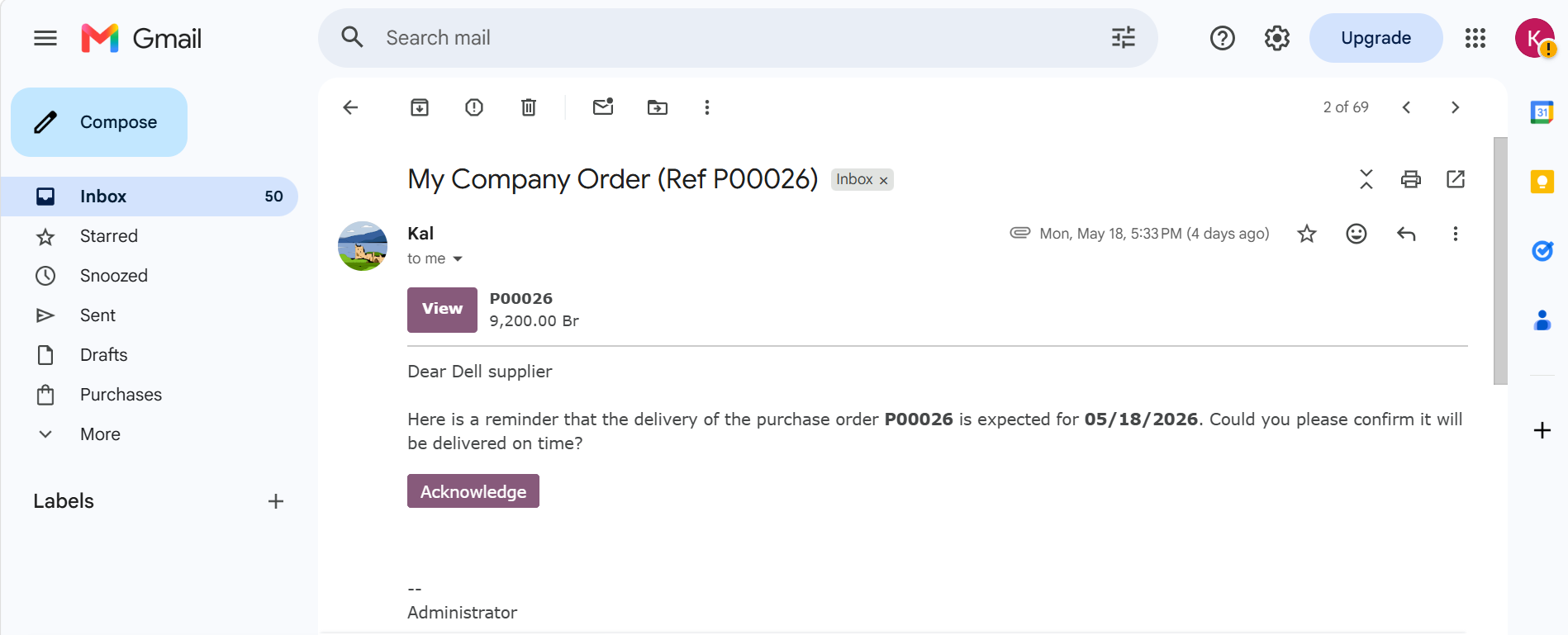
    here is a sample Email Template that the system sends to vendor,  i.e  that vendor should have a valid Email.


    5. Purchase Agreements - manage Blanket Order and Purchase Template.

    The purchase Agreements feature is used when a company wants to manage more structured purchasing processes instead of creating simple RFQs directly.

    when you enable it: Purchase -> Configuration -> Settings -> Purchase Agreements, you will notice new Menus such as Purchase -> Orders ->Purchase Agreements.
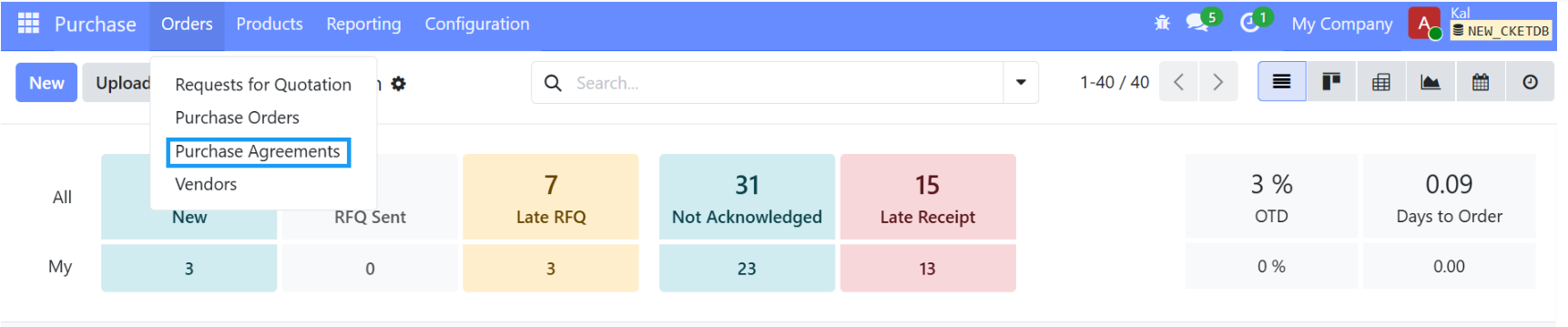

      There are two Agreement Types:
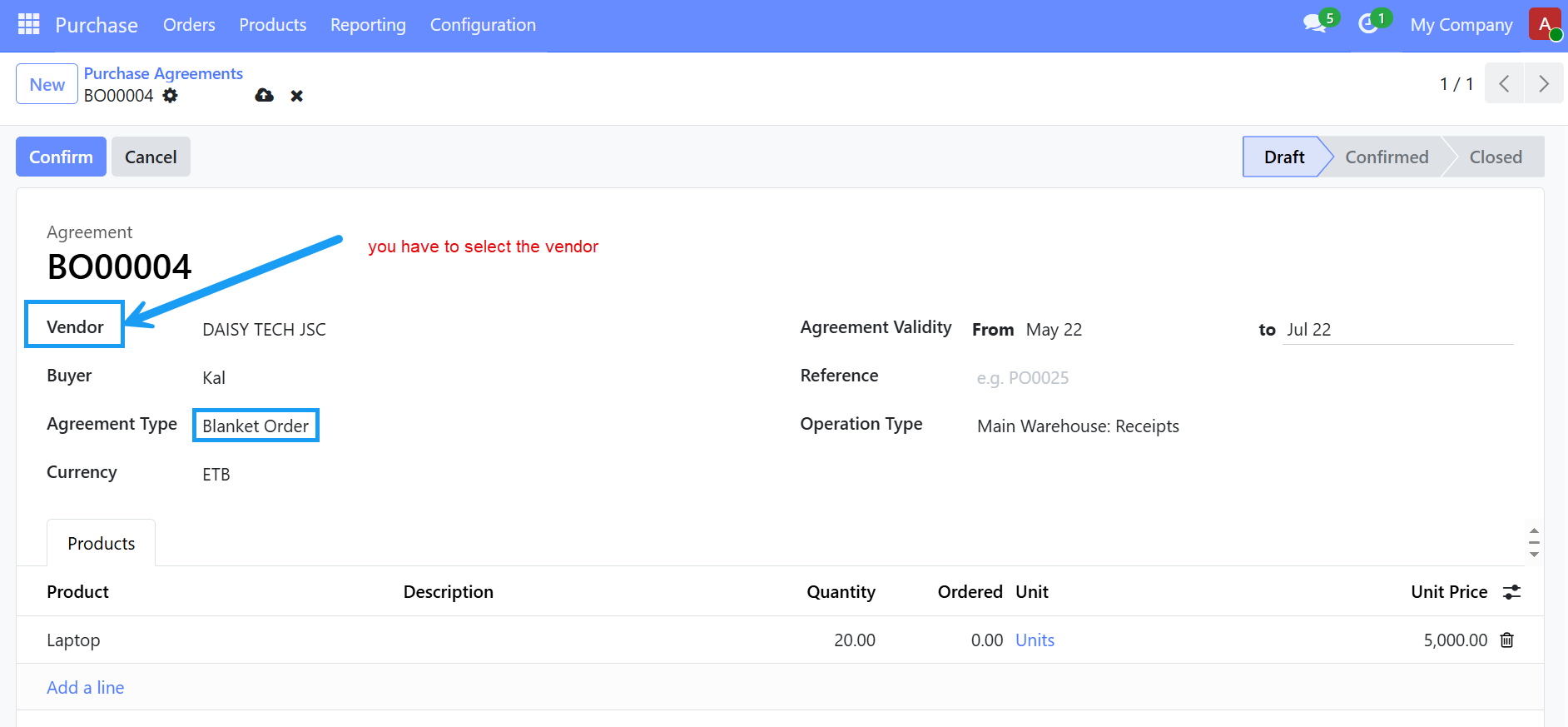
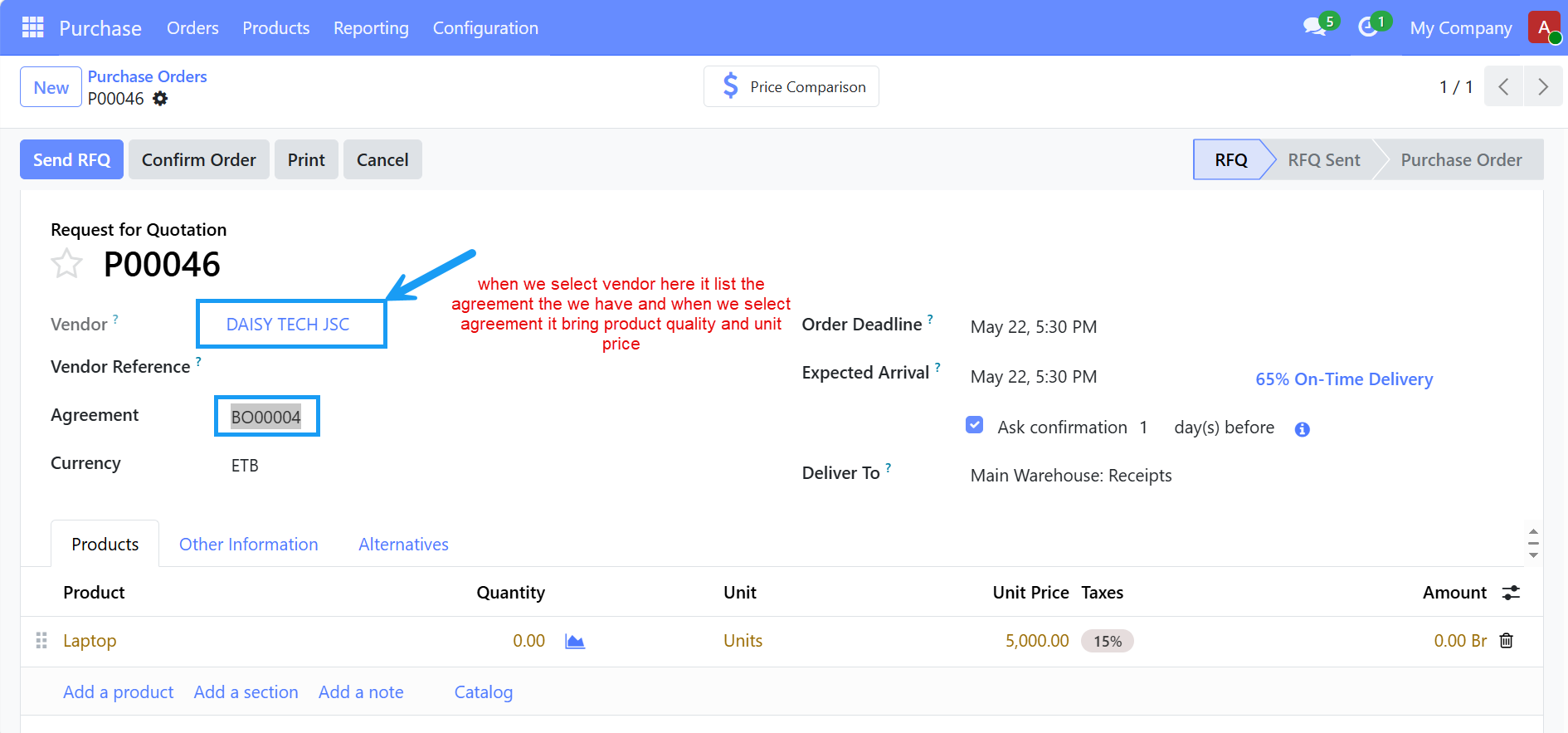
    1. Blanket Order - used for long-term purchasing agreements with a supplier. If your company agrees with a paper supplier 30000 notebooks for one year with fixed price and deliveries whenever needed.
      Instead of creating separate negotiations every month, you create one Blanket Order agreement and later generate multiple RFQs/releases from it. it is useful for
      • recurring Purchases
      • fixed-price contracts
      • long-term supplier relationships.

    Then go to Purchase Order and select the vendor you have agreement with, it displays the Product and Unit price for that agreement, Quantity become zero to full our interest.
     

    2. Purchase Template(Call for Tender) - Used when you want to invite multiple vendor quote prices for the same set of items before choosing the best offer.
    • NO vendor is selected initially.
    • You create a Purchase Agreement listing the required items then send Requests for Quotation(RFQs) to multiple vendors.
    • After receiving vendor responses, you select the best offer and confirm that quotation.
    • Close RFQs after one vendor is chosen and the agreement is confirmed.
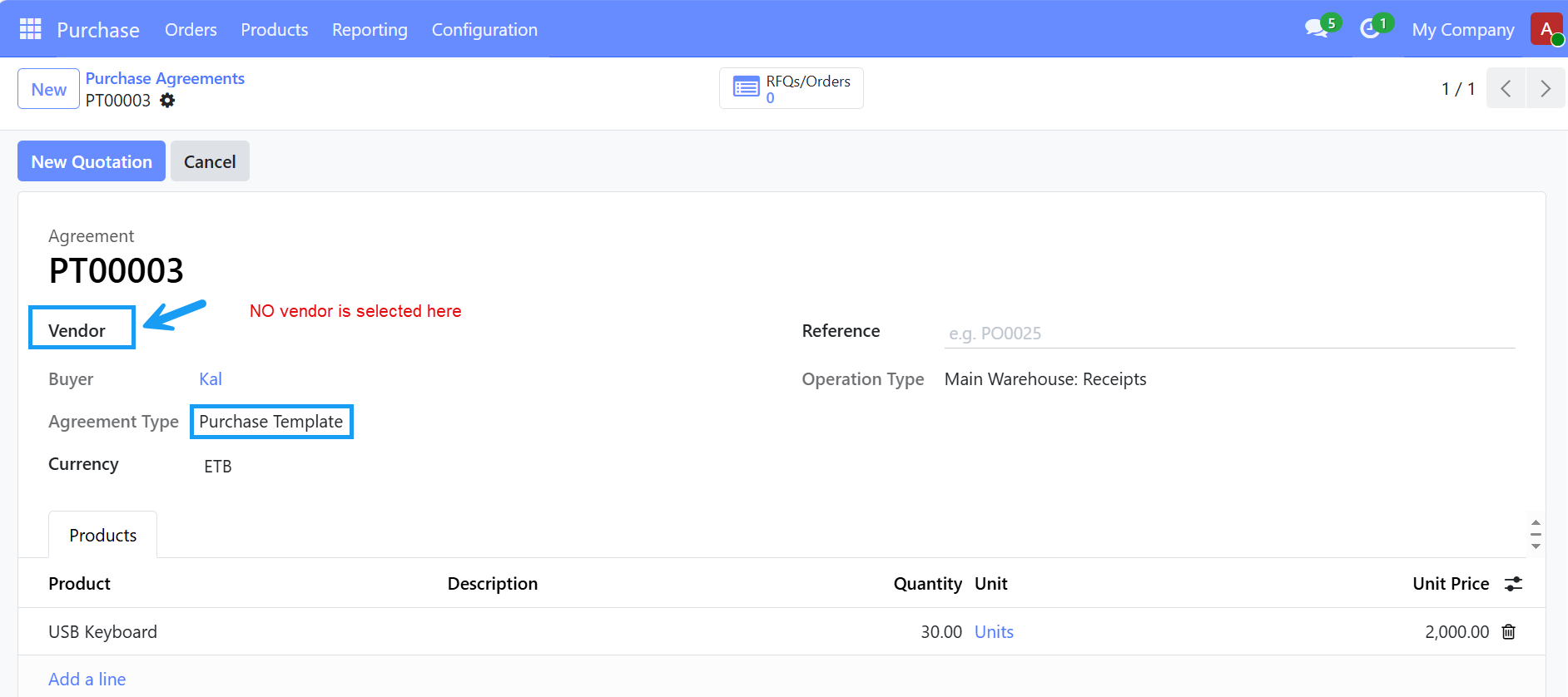
    Steps to Add Multiple Vendors in Purchase Template

    • go to the purchase Agreement and create a new agreement.
    • select Agreement Type -> Purchase Template -> Add product and quantities.
    • click Confirm, After confirmation
    • click the button "New Quotation" or "Create RFQ".
    • select the first vendor and save or send the RFQ.
    • return again to the same Purchase Agreement.
    • click "New Quotation" again.
    • select another vendor.
      Repeat this for all vendors you want.

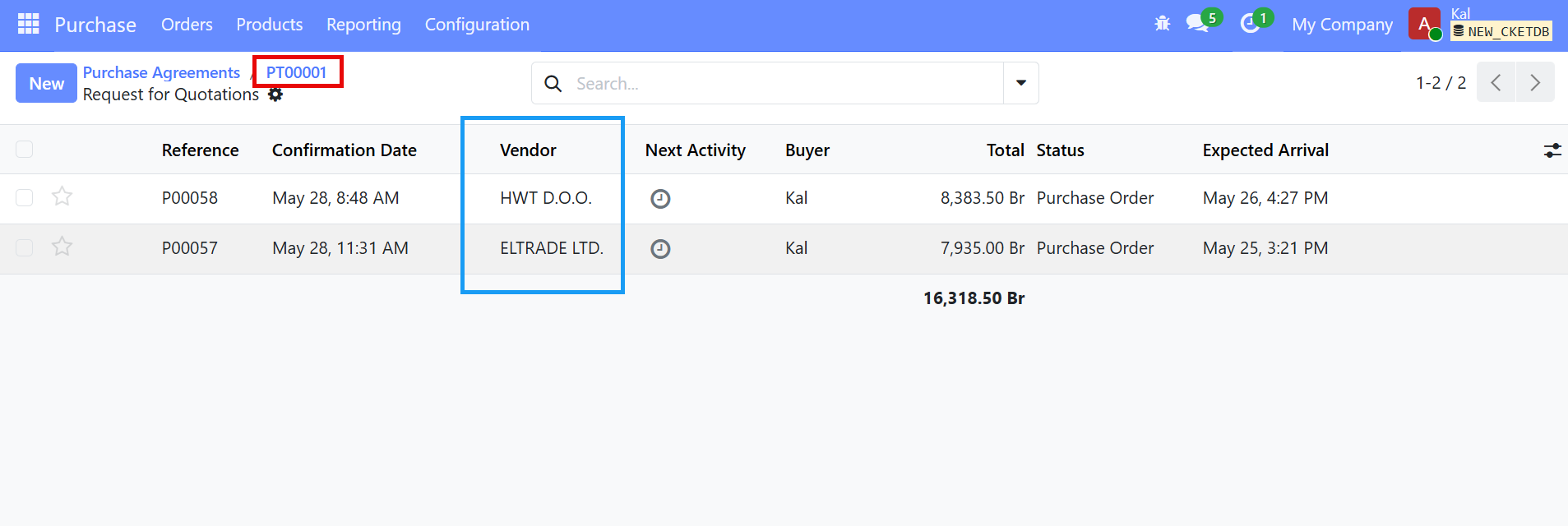
    To see All Vendors

    • Inside the Purchase Agreement form, you will see A Smart button like "RFQs/Orders"
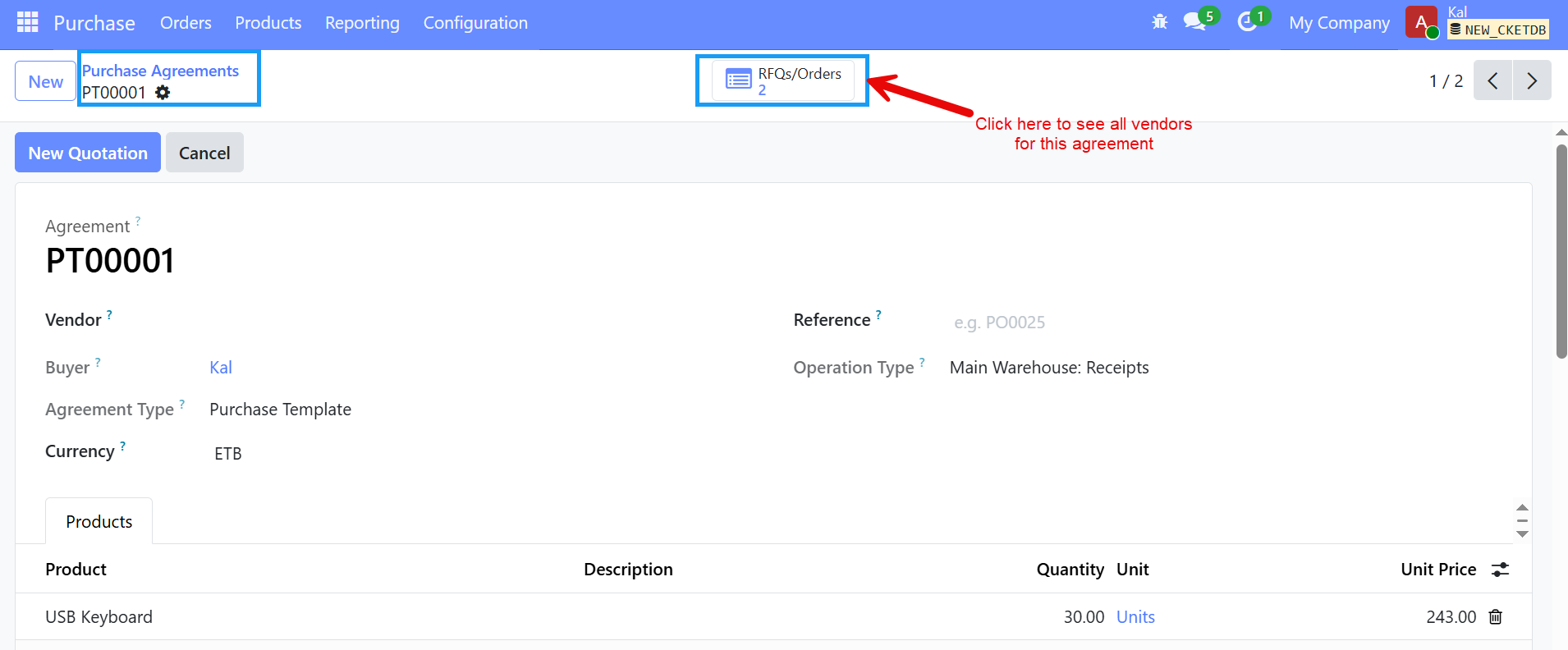
    opening it shows all vendor quotations linked to that agreement, this is how to track multiple vendors for one tender process.


    Previous Next
    Follow us

    Bole Medhanialem,Abysinnia Plaza (2nd Floor)

    Addis Ababa,Ethiopia

    • +251 983 58 58 58
    • +251 94 431 0004
    • ckettech@gmail.com
    Copyright © Cket_Technologies
    Powered by Cket ERP - Create a free website