Quotation in Sales - is a document sent to a customer before confirming a sale.
It shows the products or services the customer wants to buy including the quantity, price, taxes, delivery information and payment terms.
A Quotation is the first step in the sales process. it is used to provide a price information to the customer and request their approval before creating a sales order.
Create Sales Quotations
- Open the Sales app
- Go to Orders → Quotations → New
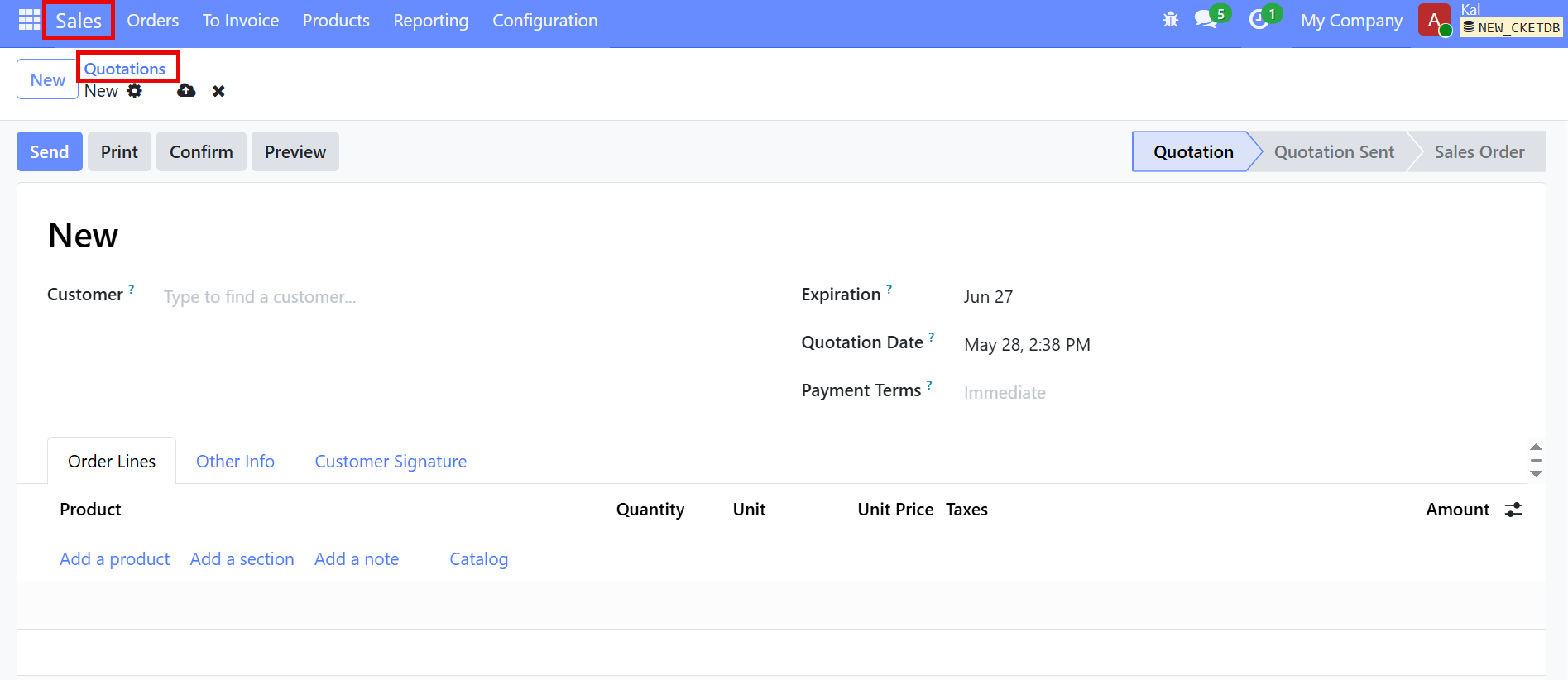
- Select the customer
Add quotation details
- Pricelist
- Expiration date (optional)
- payment terms.
- Add products
- In the Order Lines section, select the products/services the customer wants.
- Enter quantity and price.
- Check taxes and totals
- Save the quotation
- Send to customer
- Click Send by Email or Print.
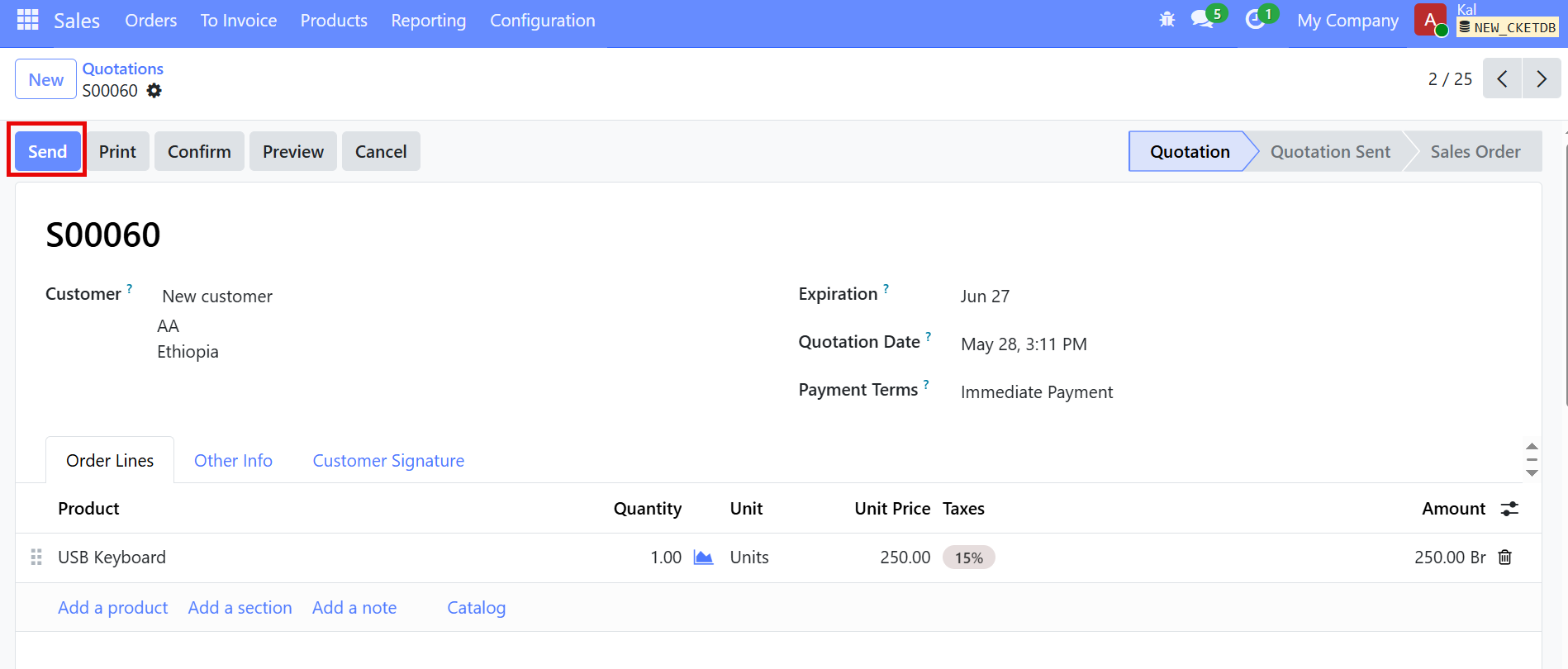
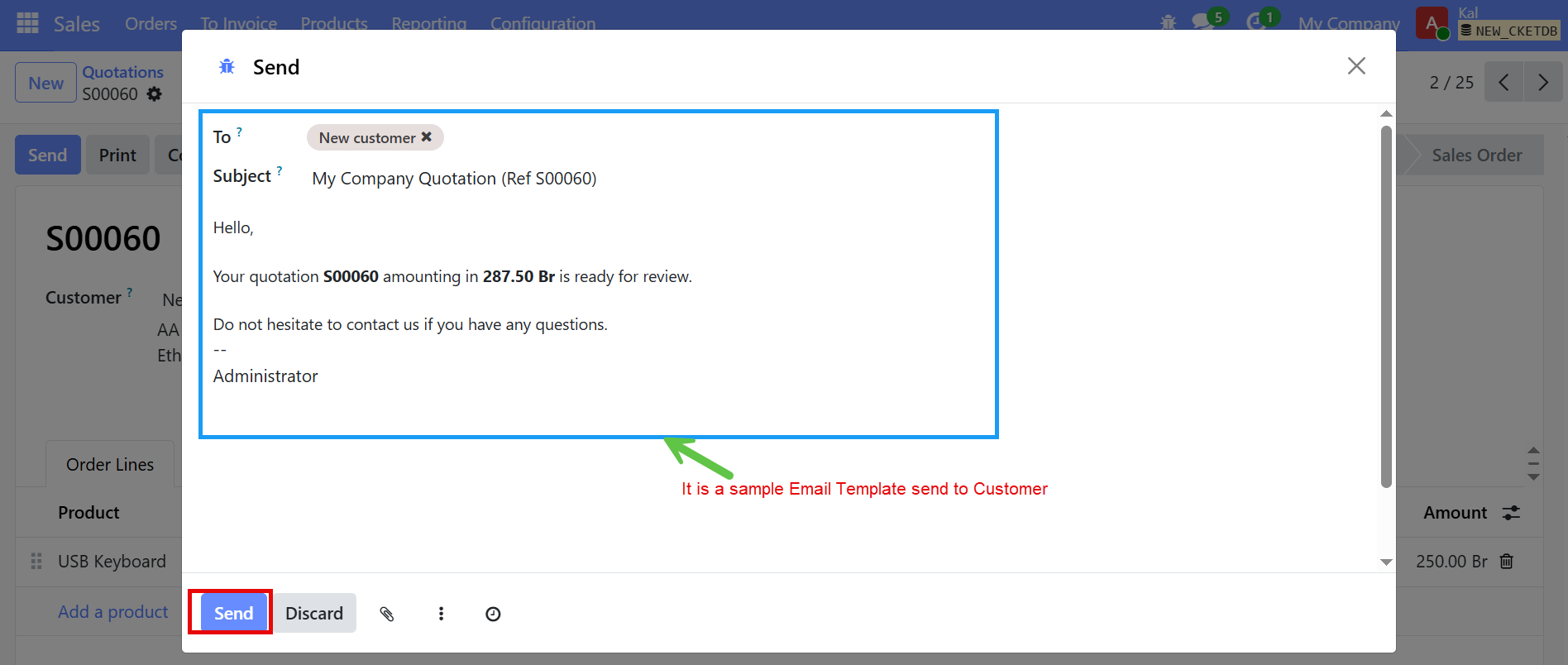
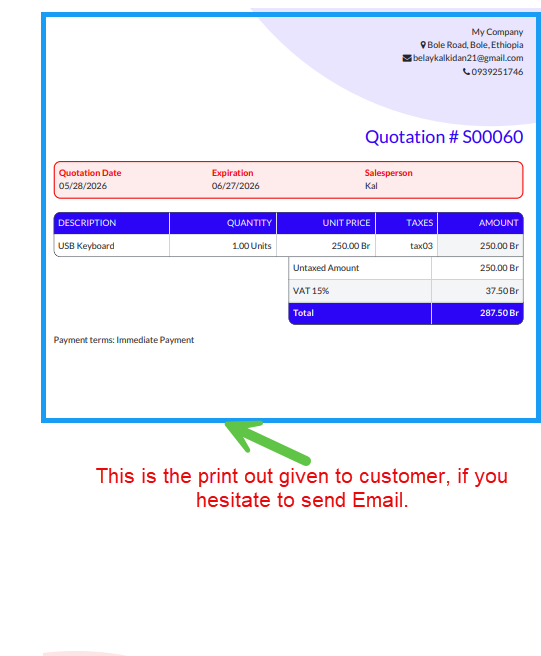
But if you want to give the print out for your customer instead of send Email Click "Print", and there is a sample print out paper.
After the quotation is sent, There is a state change to Quotation sent.
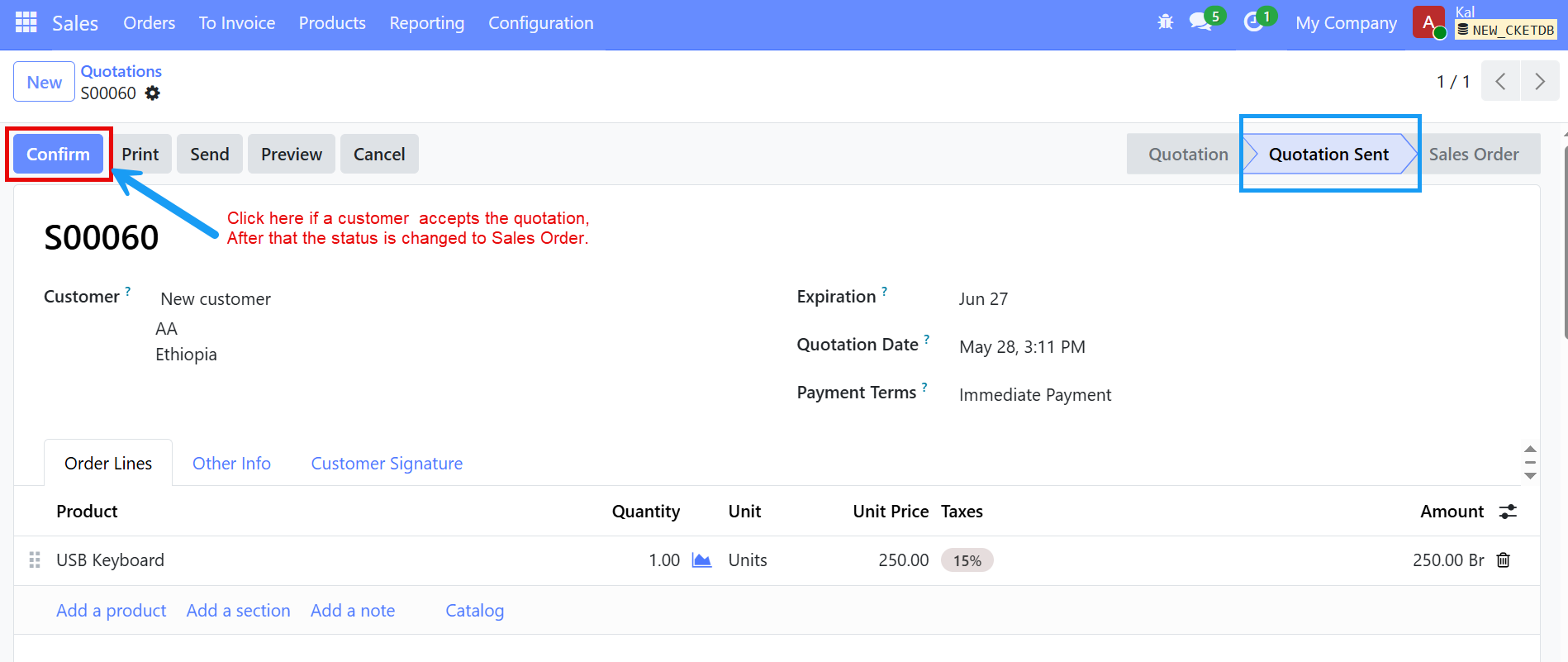
- The customer receives the quotation document.
- Confirm the quotation when customer accepts
- Click Confirm.
- The quotation becomes a Sales Order.
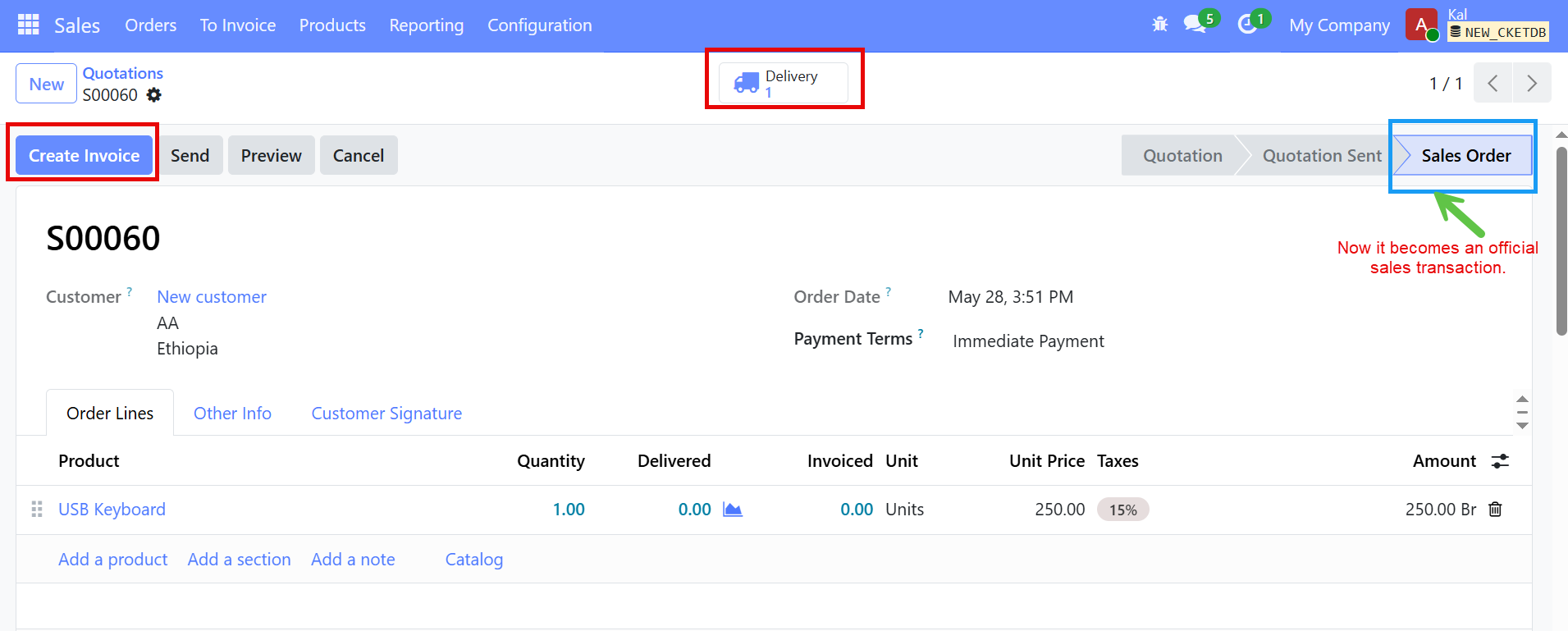
After it becomes Sales Order, the system automatically create a delivery order in the inventory module - if the product is stockable item.
The accounting or sales team can create a customer invoice.