Create a New MRC Request
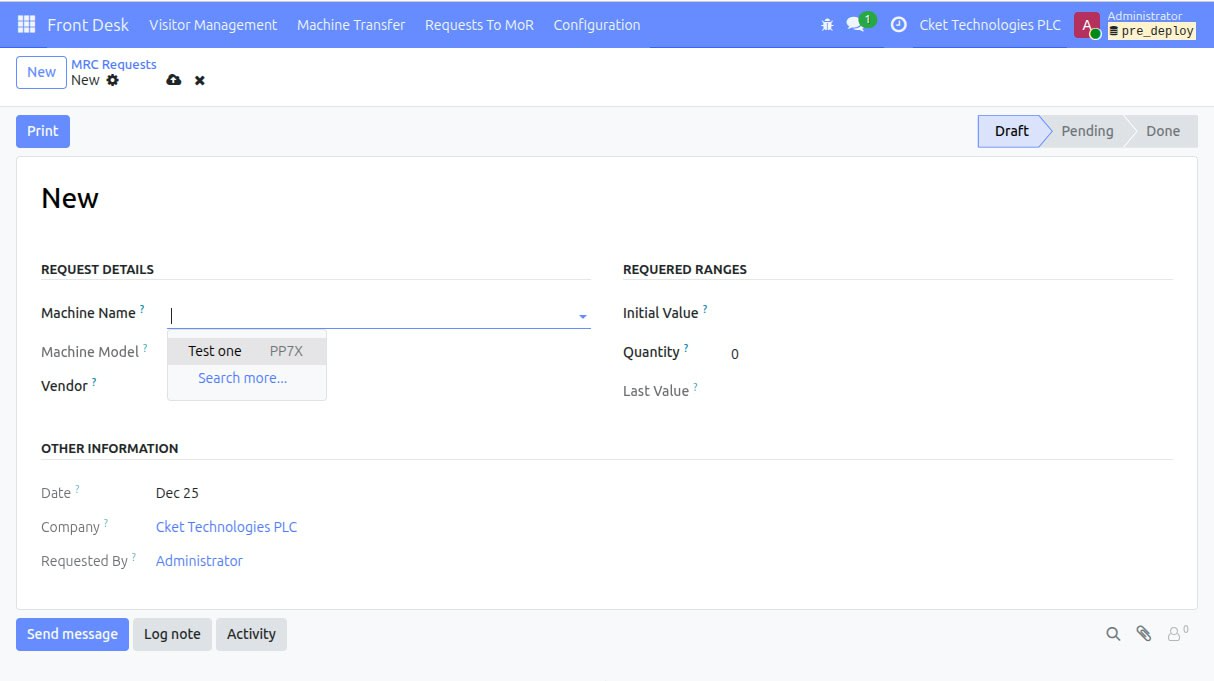
Click the New button.
Fill the Request Details section:
Request Details Fields
Machine Name
When selected:
Machine Model is auto-filled.
Initial Value is auto-filled by the system.
If the machine was requested before, the system continues from the last value.
If this is the first request, counting starts from 1.
MRC Prefix Automatically filled by the system.
Select the appropriate vendor (we need it for print out).
Enter the Quantity.
Last Value – the system automatically calculated and filled by the system.
Review all entered information carefully.
Click the Print button.
Status changes from Draft → Pending
The request letter is downloaded.
The letter is ready to be submitted to ERCA.
If you are not sure about the entered data:
Click Set to Draft
Status returns to Draft
Review and correct the information
After receiving approval from ERCA:
Click the Confirm button.
Status changes from Pending → Done
Load to MRC Pool button appears
Click Load to MRC Pool.
MRCs are loaded into the system.
Status changes to Loaded to Pool
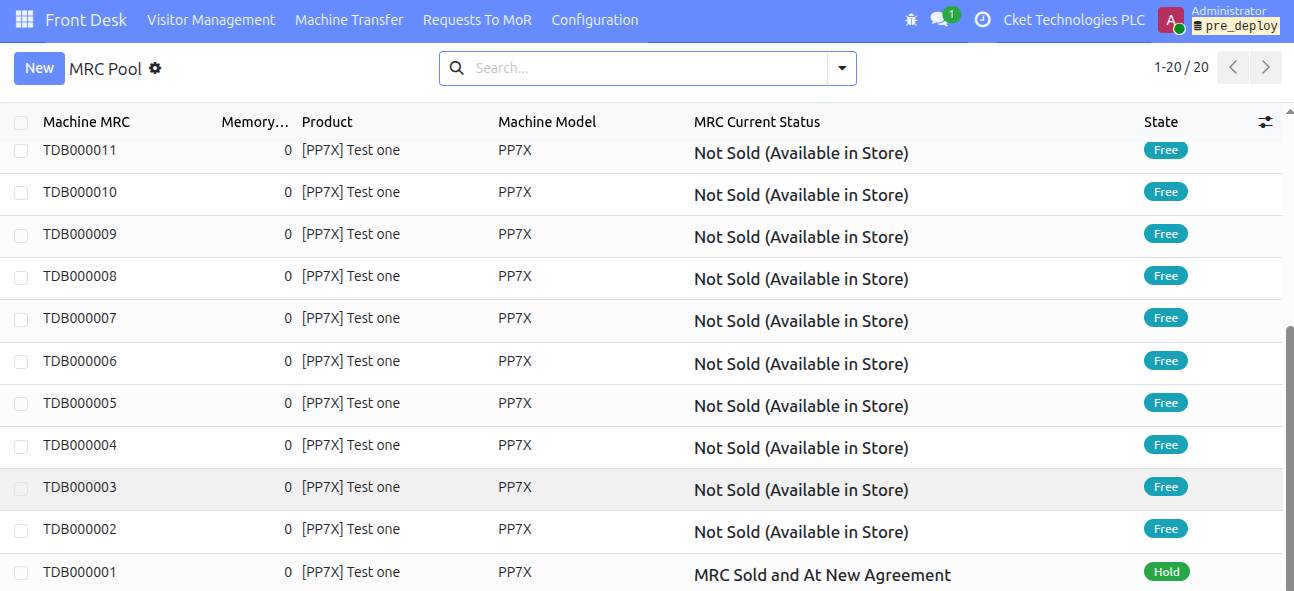
Go to Requests To MoR tab.
Select MRC Pool.
Machine MRC
Product Name
Machine Model
Memory Counter
(Used when memory is changed for any reason)
MRC Current Status
(Changes based on machine movement)
State:
Free – available for sale
Hold – machine sold
Ceased – machine ceased
Print the Request Letter
Correcting Data (If Needed)
Confirm ERCA Approval
Load MRCs to the System Pool
View Available MRCs
This page displays: